Select with a brush, refine with an eraser
Adjust brush size, erase mistakes and undo recent strokes. Leave a little room around an object for its shadow. The source and mask share the same dimensions, so the selected region stays aligned.
 ShotTide
A new detail, the same picture. Brush the area you want to change.
2 credits · one result
Plans and creditsNo generation starts on upload or login. Confirmed failed jobs return reserved credits.
Choose a source or describe a new image. The result appears here.
Review faces, hands, garment details and exact spelling before publishing AI-edited images.
A shell was added inside the lower-left selection. The bottle and every pixel outside the mask are restored from the prepared source.
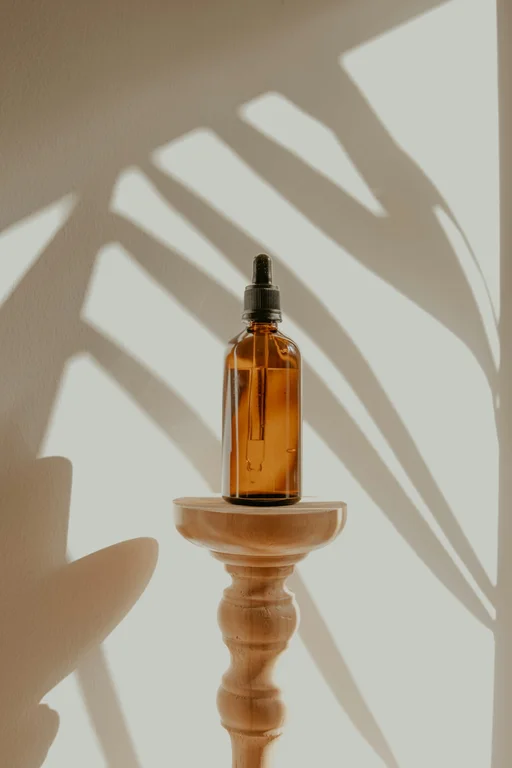
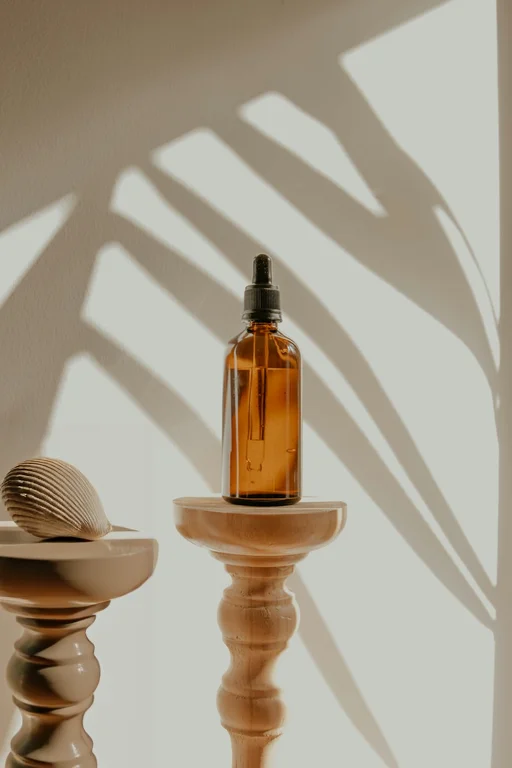
AI inpainting regenerates a selected part of an image using a text description. Here, a brush mask defines the edit and a final masked composite keeps unselected pixels from your prepared source. Use it to replace a distracting object, change a surface or repair a small area without regenerating the entire picture.
Adjust brush size, erase mistakes and undo recent strokes. Leave a little room around an object for its shadow. The source and mask share the same dimensions, so the selected region stays aligned.
An optional second image can guide the object or style inside the mask. Describe how it should sit in the scene. Reference-based edits use a different model; unselected source pixels are still restored in the final composite.
Compare the original and result at the edge of your mask. If an object has a reflection, select that area too. A mask that is too tight can leave a visible seam even when the generated center looks good.
Choose a JPG, PNG or static WebP and inspect the prepared preview.
Mark the region, optionally add a reference, and describe what should appear there.
Generate, compare the boundary and download the composited PNG.
An editable prompt example. Adapt the subject and setting to your own source.
Replace the selected object with a small ceramic vase holding three olive branches. Match the existing light, perspective and contact shadow.
The model sees the full scene for context, but the final result composites the generated area through your mask. Pixels outside the mask are taken from the prepared source.
Yes. Select the object and its shadow, then describe the background that should replace it. Check textures and repeating patterns in the result.
The mask may cut through a shadow or leave too little context. Expand the selection slightly and describe the surrounding material and light.
One result costs 2 credits. A confirmed failed or canceled task returns its reserved credits. A new version is a separate generation.