No generation starts on upload or login. Confirmed failed jobs return reserved credits.
Preview & results
Make room for your next image
Choose a source or describe a new image. The result appears here.
Review faces, hands, garment details and exact spelling before publishing AI-edited images.
See a real result
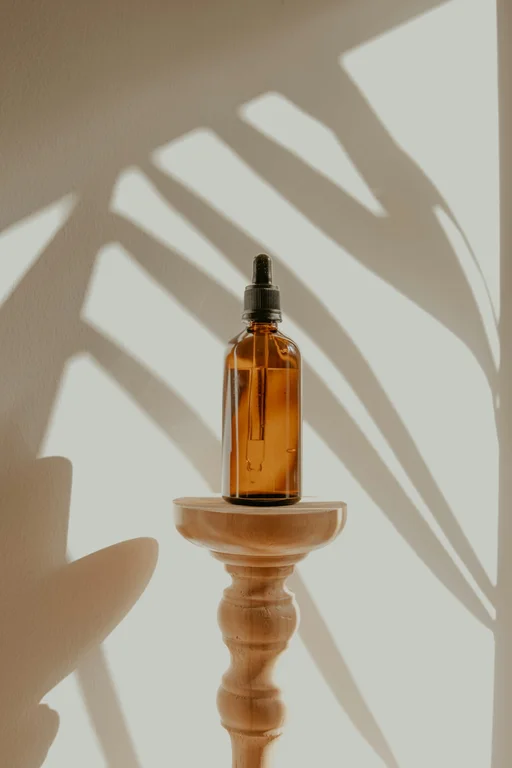
The prompt below was extracted from this product photograph. It describes visible lighting and composition; it cannot recover the original hidden prompt.
Source
A minimalist product photograph featuring a single amber glass dropper bottle with a black cap, centered on a light natural wood pedestal. The composition is clean and balanced, with the bottle and pedestal occupying the lower half of the frame. The background is a plain, creamy off-white wall, dramatically illuminated by strong, warm sunlight casting sharp, elongated shadows of tropical leaves or palm fronds across it. The lighting highlights the translucency of the amber glass and the smooth texture of the wood, creating a high-contrast play of light and shadow. The overall palette is warm and earthy, dominated by amber, natural wood tones, and soft beige.
One illustrative sample from ShotTide. Results vary with the source and instructions.
What is image to prompt?
An image-to-prompt tool analyzes visible content and describes it as a reusable generation prompt. It can identify composition, lighting, palette, camera perspective and style. It cannot retrieve the original prompt that created a picture, and its description should be reviewed for details that are uncertain or missing.
Describe what is visible
Upload the image and optionally name a focus, such as lighting or composition. The output is written in the page language and avoids trying to identify real people. A clear picture gives the analysis more useful visual information.
Edit the direction
The generated description stays editable. Remove unsupported details, change the subject or simplify competing style instructions. Treat the description as a draft for a new image, not a guaranteed reconstruction recipe.
Continue into creation
Copy the prompt, download it as text, or send it into the image generator’s draft. Reuse does not automatically generate an image or spend another set of credits; you review and submit the next request.
How to use image to prompt
Upload a reference
Choose a picture with the visual elements you want to understand.
Generate a description
Optionally state a focus, then review the analysis cost and submit.
Refine and reuse
Edit the prompt and copy, download or open it in the image generator.
A direction to start from
An editable prompt example. Adapt the subject and setting to your own source.
Describe the visible subject, composition, lighting, colors, materials and photographic or illustration style for a reusable image-generation prompt.
Image to Prompt: questions answered
Can it recover the exact original prompt?
No. It creates a new description of visible content. The original model, prompt, seed and hidden settings cannot be reliably recovered from an image alone.
Can I get a Chinese prompt?
Yes. Use the Chinese page for a Chinese description and the English page for an English one. You can edit the output before reusing it.
Will the prompt recreate the same picture?
Not exactly. Different models and seeds interpret descriptions differently. Use it to capture useful visual direction and create a new result.
How much does it cost?
One analysis costs 0.2 credits. A confirmed failed or canceled task returns its reserved credits. A new version is a separate generation.